Writing and publishing
Search is the interface
The omnibar filters your posts as you type. ↑/↓ previews each post, ⏎ opens it, and ⏎ with no match starts a new draft seeded with what you typed. ⌘L comes back to the omnibar from anywhere, and so does esc from the editor.
⌘N (Post › New Post) opens an empty editor with the caret in it. Your
search and the list stay as they were. What you type is a scratch note,
kept on this Mac and saved as you go; the status bar says “New note · saved
locally · ⌘D draft · ⌘⏎ publish”. ⌘D makes it a draft on your blyg, and ⌘⏎
publishes it. If you leave without typing anything, nothing is kept. With
new-note = draft, ⌘N starts a draft instead.
Posts are plain Markdown, and there’s no save button. Every keystroke is saved on your Mac and synced shortly after you stop typing. A post’s title is its first line of text (a leading heading is the title), never a quote it starts with.
Fragments and threads
A blyg holds two kinds of post:
- a fragment is short: up to 1000 characters. A live counter in the status bar turns amber past 900 and red past 1000;
- a thread is long, with no limit, and can quote other posts.
⌘T switches a post between them (or click ◦ fragment / ≡ thread in the
status bar). An over-long fragment can’t be published: the status bar says
“Too long for a fragment · ⌘T makes it a thread”. The AI helper Shorten to
fit 1000 (⇧⌘G) is the other way out; see AI helpers.
Publishing and versions
⌘⏎ publishes. A sheet drops from the title bar, “Publish … as v2”, with an optional version note; ⏎ publishes and esc cancels. A toast shows the result and its address, and ⌘O opens the post on the web.
Every publish makes a new public version (v1, v2, …); editing a published
post leaves it public v3 · unpublished edits until you publish again, and
its row in Posts gets the edit mark. Hover either to see both ways out: ⌘⏎
publishes the edits as v4, ⌥⌘Z discards them. The published and pinned marks
say what they mean on hover too.
Versions (⌘Y) lists every version of your post with its note. Open any of
them and Restore it into the editor; publishing it makes a new version,
since versions never go backwards.
Discard changes
Changed your mind about the edits to a published post? Discard changes puts the editor back to the version your blyg has published. Use ⌥⌘Z, Post › Discard Changes…, the toolbar’s eraser button, or Discard changes… on the current version in ⌘Y. A sheet asks first (“Discard unpublished changes? … The editor goes back to v3 as published. You can’t undo this.”): ⏎ discards, esc keeps the edits. Then a toast says “Back to v3 as published”.
The public post doesn’t change: only your unpublished edits go. Discard is unavailable, with the reason on hover, for a draft or scratch note (delete those instead), a withdrawn post, a post with no edits, and while you’re offline, since it needs the blyg. If v3 disclosed generated text, the blyg keeps the post marked unpublished after a discard, and the toast says so: ⌘⏎ publishes it again as v4.
On Windows Discard changes has no key (Ctrl+Alt+Z is AltGr+Z on some layouts): use Menu › Post › Discard Changes… or the toolbar.
A version can be pinned: a pin is served unchanged forever, and it’s what other blygs can fork. Pinning can’t be undone, so it asks you to type to confirm.
Delete and withdraw
Drafts and scratch notes can be deleted: ⇧⌘⌫ (Post › Delete Draft…) asks first. Published work is never deleted. Post › Withdraw… withdraws a published post instead, with an optional note. Withdrawn posts stay listed as withdrawn, and you can’t undo it, so Withdraw has no key on purpose.
Quick capture and scratch notes
A global hotkey (⌃⌥B by default, capture-hotkey) opens a small panel over
any app. esc, ⌘S or clicking away keeps what you wrote as a scratch note:
it stays on this Mac, is never synced and never published, until you decide.
⌘D makes it a draft on your blyg, and ⌘⏎ publishes it (as a fragment if it
fits, otherwise as a thread).
Scratch notes show in the main list with a scratch pill, are searchable and
editable, and ⌘D or ⌘⏎ there promotes them too. Images pasted into a scratch
note stay on your Mac until it’s promoted, when they’re uploaded.
capture-default = draftmakes esc save a draft instead.new-note = scratchmakes the omnibar create scratch notes too, andnew-note = draftmakes ⌘N start drafts. Unset, ⌘N starts a scratch note and the omnibar creates a draft.
Links, mentions, images and spelling
- Paste a link over text. Select some text and paste a web address to link
it, as in WordPress: the text becomes
[text](address). - Mentions. Type
@to pick from the blygs you know (subscriptions, blogroll, authors you read). It inserts a plain link to that blyg, since Blygger has no handles. - Images. Paste or drop an image to upload it; it goes into the text where you pasted it, and the preview shows it. Until a published post shows it, an upload is private on studio 0.28 or later: only you (and Burrow, signed in as you) can see it.
- Spellcheck with the macOS spell checker, your languages and learned
words: a red wavy underline, and right-click for suggestions, Learn Spelling
and Ignore. Code, links, quotes and TK markers are skipped, and checking
runs in the background after you pause, so typing stays instant.
spellcheck = falseturns it off.
The preview and the full editor
A live preview beside the editor shows the post exactly as your blyg will publish it, in your blyg’s own theme: quotes, links, AI-written spans, images and video. Click a paragraph in the preview to jump to it.
- ⌘1 Write: the list and the editor.
- ⌘2 Preview: the list, the editor and the preview.
- ⌘3 Full editor: the editor and the preview, with the list hidden.
- ⌘E toggles the preview in place.
Quoting other posts
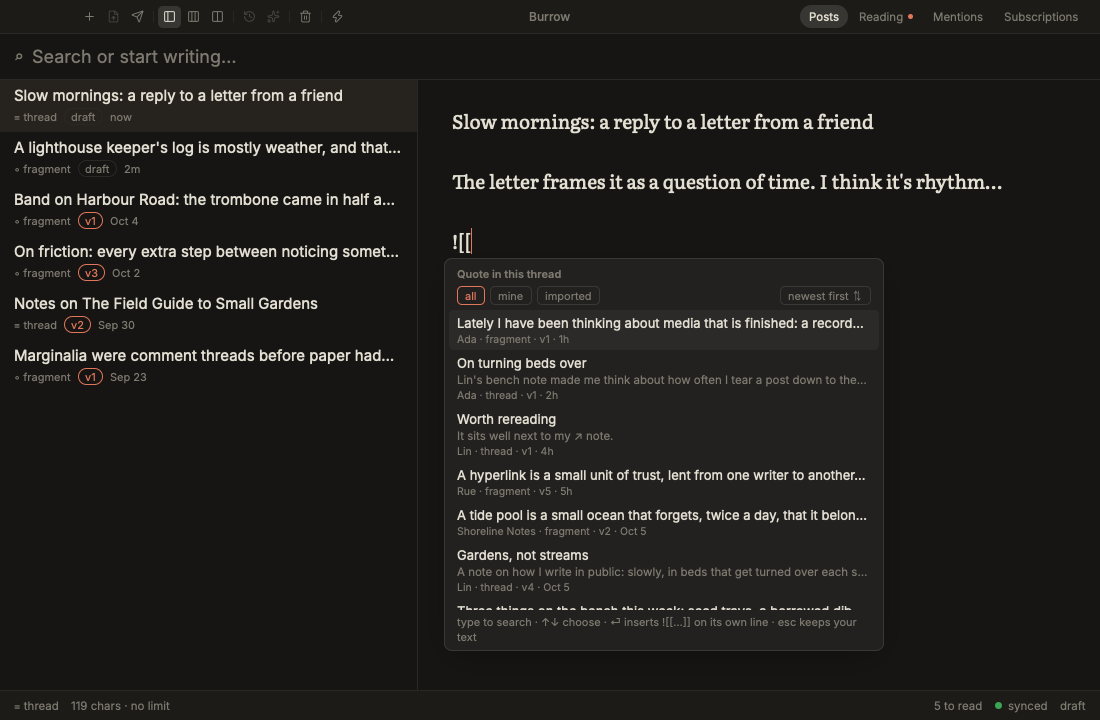
In a thread, ![[id]] alone on a line quotes a post: yours, or one from a
blyg you follow. The quote is a snapshot taken when you publish; later edits
to the original never rewrite it. ⌘K (or typing ![[ at the start of a line)
opens a picker of the posts you hold, and ⏎ inserts the line with a note,
![[id | note]] (see labelled links below). The picker
searches every word of your published posts and the blyg posts you read, on
your Mac, and filters by source (all, mine, imported) and blyg, newest or
oldest first. Where you type the search is the blyg’s picker typing
setting: after the brackets in the editor (the default on a Mac), or in the
picker’s own box. Quotes only go
in threads: in a fragment, Burrow says so and leaves the text alone.
Partial quotes
![[id]] followed directly by > lines quotes just that passage of the
post:
![[01J9ZK3Q7T5V8X2B4N6M0PQRST]]
> The passage you want, exactly as it is in the post.

What you have to say about it.
A blank line between ![[id]] and the > lines makes it a whole quote
followed by your own blockquote instead. The preview flags a passage that
isn’t in the quoted post, and publishing refuses it. In the stream, a partial
quote shows only its passage.
The easy way to write one is to select the passage while reading and press ⇧⌘D, or to reply and choose quote a passage instead in the stub; see Reading, quoting and responses.
[[id]] links
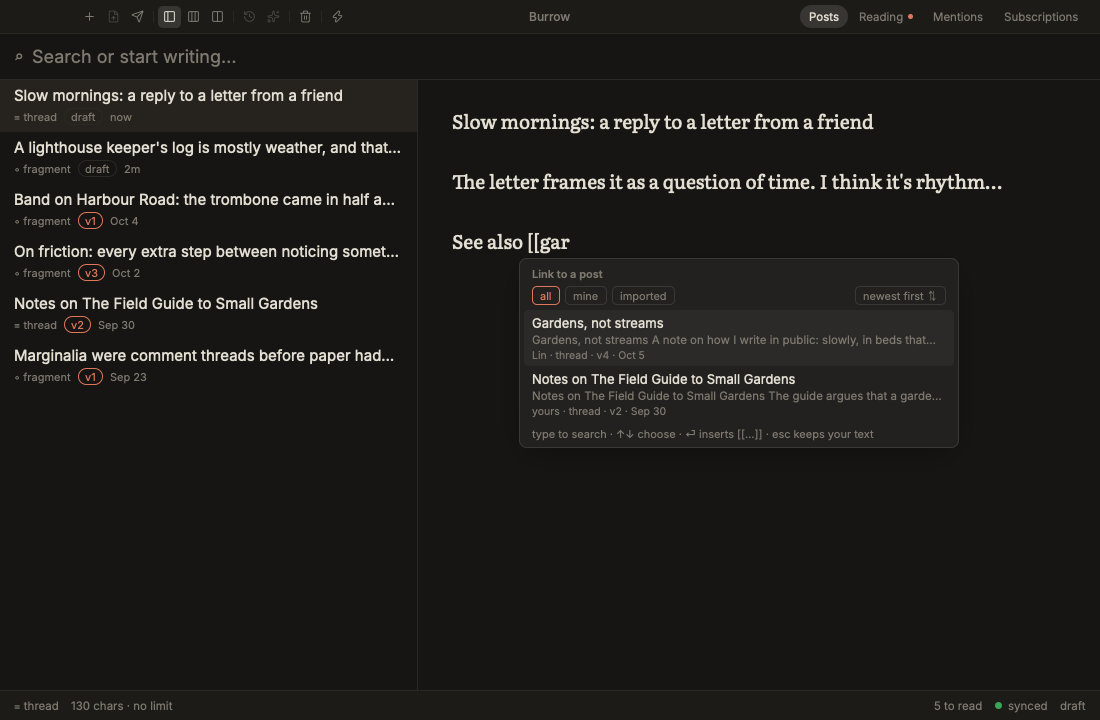
An inline [[id]] links to one of your posts or one you read, without
quoting it:
As I said in [[01J9ZK3Q7T5V8X2B4N6M0PQRST]], the lighthouse is the point.
The preview shows it as the published page will: the target’s first words in quotes, linked. Links inside code stay as text. A link that can’t be resolved is flagged in the preview, the status bar and the publish sheet, as quotes are; publishing refuses it (“one or more references do not resolve”).
Labelled links
A link can carry its own text after a |:
As I said in [[01J9ZK3Q7T5V8X2B4N6M0PQRST | Gardens, not streams]], the
lighthouse is the point.
The label is what the link says on the published page, in place of the
target’s first words. To rename a link, edit the words after |; the id
before it is what the link points at, so leave that alone. A quote takes a
label too, ![[id | note]], but there it’s a note for you: the published
quote shows the quoted post, not the note. The preview renders labels as
blygger-studio 0.47 does.
Typing [[ anywhere outside code opens the same picker as ![[, for a link.
Each row leads with the post’s title. ⏎ writes the labelled form, and the
footer says so: “⏎ inserts [[… | label]]” for a link, “⏎ inserts ![[… |
note]] on its own line” for a quote. The label the picker writes is:
- the post’s heading, when it opens with one;
- else its title (its first line),
[[id | Gardens, not streams]]; - else, when the title is longer than 80 characters or the post has no text, a quoted excerpt of its first words.
When that label isn’t the title, the row shows it on a muted line, links as “…”, so you know what the page will say. (For a post with no heading the web studio writes a quoted excerpt of its first 60 characters; Burrow writes the title, which is what you searched for and what a reader should see. Either way the label is just your text, and you can change it.) Quote into a thread from Reading writes the labelled form too.
Labelled links need blygger-studio 0.47 or later. On an older blyg the
pickers write bare links ([[id]], ![[id]]), and a post that already has a
label waits, unsent, until the blyg is updated. Publishing it offers ⏎ to
write its links bare and publish. See Server requirements.
| 
Link post (next to Fork on a post you’re reading) starts a new fragment
holding [[id]]: a plain link, not a response. Reply is the one way to
respond.
Replying to, quoting and linking your own posts
A published post of yours has a row of chips above its text in Posts: “Your
post · v3 ·” then Reply · new stub (⌥⌘R), Quote into a thread (⌥⌘Q)
and Link post · new fragment (⌥⌘L). They’re in the Post menu too, and do
what the same actions do on a post you’re reading: Reply starts a stub thread
of your own post, Quote puts ![[id | label]] in a thread, and Link post
makes a fragment holding [[id]]. Drafts and scratch notes have no row.
There’s no Fork there: your own post forks only from a pin. Open ⌘Y, pick a pinned version, and choose Fork this pin for a new draft that descends from it. On an unpinned version it’s greyed out (“Pin one in ⌘Y to fork it”). Your posts are also a source in Reading; see Your blyg.
TK: gaps for later
Write [TK]instruction[/TK] where something is still to come:
The harbour was quiet. [TK]one sentence on why, in my voice[/TK]
With the caret inside it, ⌘G fills it with AI (if you’ve switched a provider
on), written in place as [TK]instruction[=]output[/TK]. ⌘G inside it again
regenerates. The preview tints generated text, and it’s always disclosed as
generated when you publish; an unfilled gap shows as ⚠ ungenerated in the
preview. See AI helpers.
A quote the AI added. In a thread, a ![[id]] on its own line inside a
gap’s generated text is a real quote once you publish: it’s baked into the
post and notifies that post’s author. If the gap’s instruction didn’t name
that post (a model sometimes echoes a quote it saw), the preview shows it as
the quote publishing will make, and the publish sheet warns before you
publish. Delete the line, or name the post in the instruction if you meant
it.
Highlighting generated text (studio 0.27 or later): the blyg’s public pages can tint generated passages and mark them with a small robot that says what you disclosed. Your blyg’s settings (in the Reader’s site settings) set the default; the ⌘G palette sets it per post (default, on or off; H cycles it), and the preview shows the post as its page will.